When browsing a WordPress website, it can be frustrating for users to scroll back to the top after reading through lengthy content or product listings in Elementor. This is especially true on mobile devices, where longer pages can make navigation feel tedious. Without a quick way to return to the top, users may leave the site feeling annoyed, potentially impacting your website’s user experience and engagement.
Many themes offer a “Back to Top” button by default, making it easy for visitors to navigate back to top of the page. However, if you use a theme that doesn’t include this feature, you might wonder how to add it yourself. Luckily, with Elementor, you can quickly and easily add a scroll back to top button.
In this article, we’ll walk you through the steps to add a scroll back to top button in Elementor, ensuring a smoother and more user-friendly experience for your visitors.
Key Takeaways
- Learn how a scroll-to-top button improves website usability, especially on long pages.
- Discover how Elementor makes it easy to create a scroll-back-to-top button without extra coding.
- Explore different widget options like Button or Icon for designing your scroll-to-top feature.
- Find out how to make your button appear only after scrolling a certain distance.
What are the Benefits of Adding a Scroll Back to Top Button
Adding a scroll back to top button comes with many benefits. Here are some of them:
- Improves User Experience: A smooth scroll to top button makes it easier for users to navigate long pages. They can quickly return to the top without manually scrolling, making their visit more enjoyable.
Are you a site owner and want to jump to the top while designing your page in Elementor? Learn how to use the Elementor Navigator for quicker navigation and a more efficient design workflow. - Saves Time: For pages with a lot of content, scrolling all the way back up can be time-consuming. A scroll to top button allows users to save time and focus on exploring your site.
- Reduces User frustration: Long pages can be overwhelming, and manual scrolling can be frustrating. The scroll to top button minimizes frustration, ensuring visitors don’t feel stuck on your page.
- Increased Accessibility: It makes your website more accessible for people with disabilities, providing an easier way to navigate without excessive scrolling. To further improve usability for all visitors, especially those with disabilities, consider implementing best practices for enhancing accessibility in your Elementor website.
- Looks Professional: A smooth scroll button adds a modern touch to your website. It shows that you care about providing a seamless experience for your visitors.
How Does a Smooth Scroll to Top Button Work
A smooth scroll-to-top button gives users a quick way to back to the top of the page without having to scroll manually. When clicked, it scrolls the page upward instead of jumping straight to the top, creating a more pleasant and natural navigation experience.
For example, imagine browsing a long blog post or a list of products in an online store. When you’ve reached the bottom, you may want to return to the top of the page to explore other options or to the navigation menu. So, that’s where the scroll-to-top button works.
Instead of scrolling all the way back up by yourself, you see a small “Back to Top” button in the bottom right of the screen. You click it, and the page gently scrolls back to the top. It makes navigation easier and saves you time, so you can continue exploring the website without interruptions.
How to Add a Scroll to Top Button in Elementor (Step-by-Step)
When it comes to creating a scroll back to top button in Elementor, choosing the right widget for the task is crucial. Elementor provides several widget options that can be used to create the perfect button for your website.
Here are the steps to add the Scroll back to top button in Elementor.
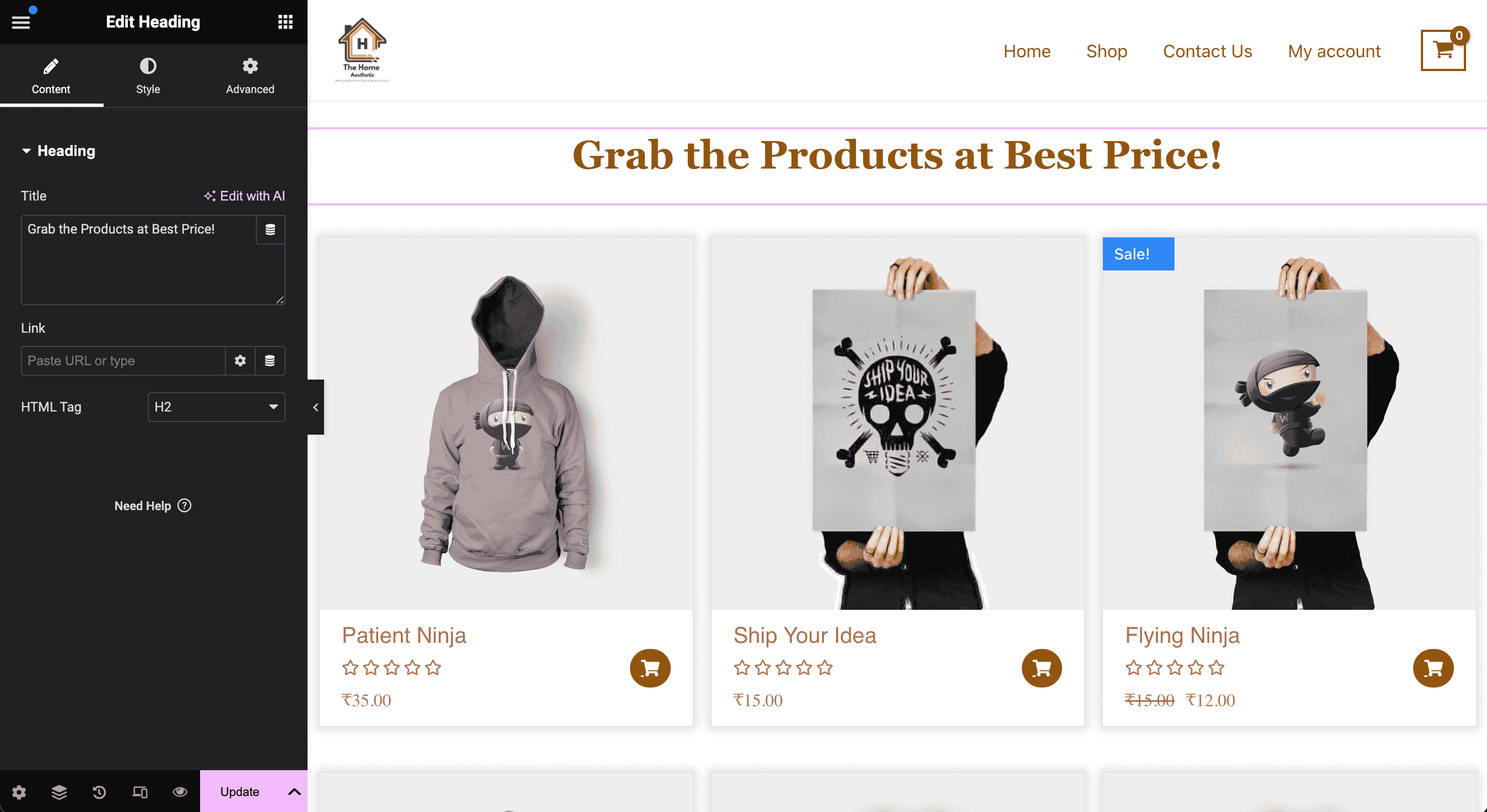
- The first step is to edit the page with Elementor to add the scroll to top button.
- We are displaying the products on this page. We’ve also added a heading at the top of the page.
Choose the Right Widget for Your Scroll to Top Button
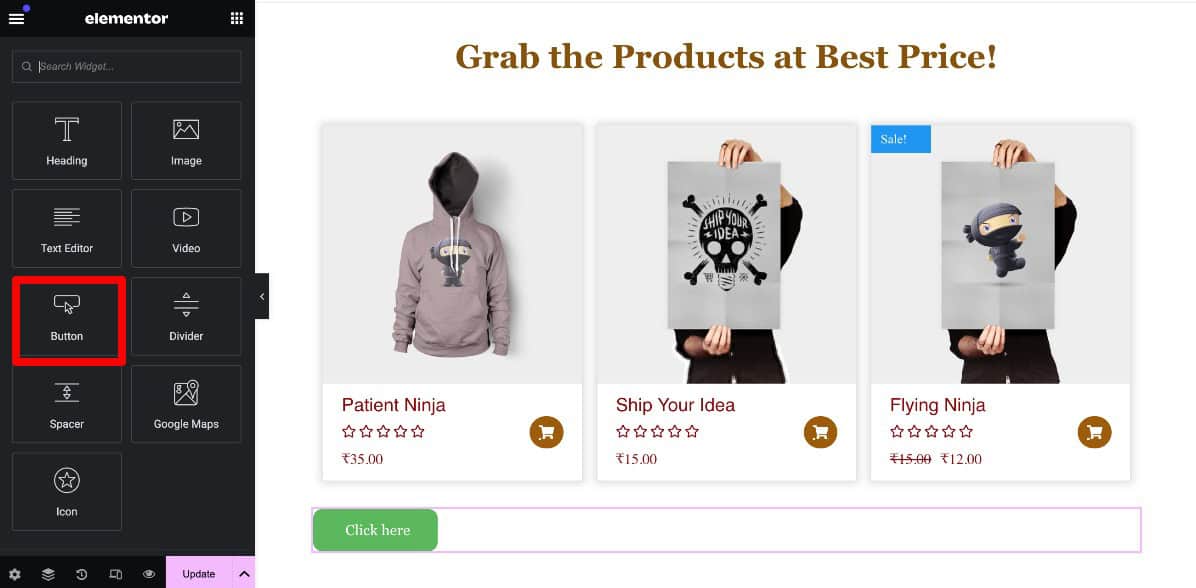
- If you want to scroll back to the top button with both text and an icon, the Button widget in Elementor is recommended. It’s easy to use and lets you customize the button to fit your website’s style perfectly.
- On the other hand, if you prefer a simpler design and only want to show an icon, the Icon widget in Elementor is a better option. It’s lightweight and straightforward and gives your scroll to the top button a clean, modern look.
Design and Customize Your Button
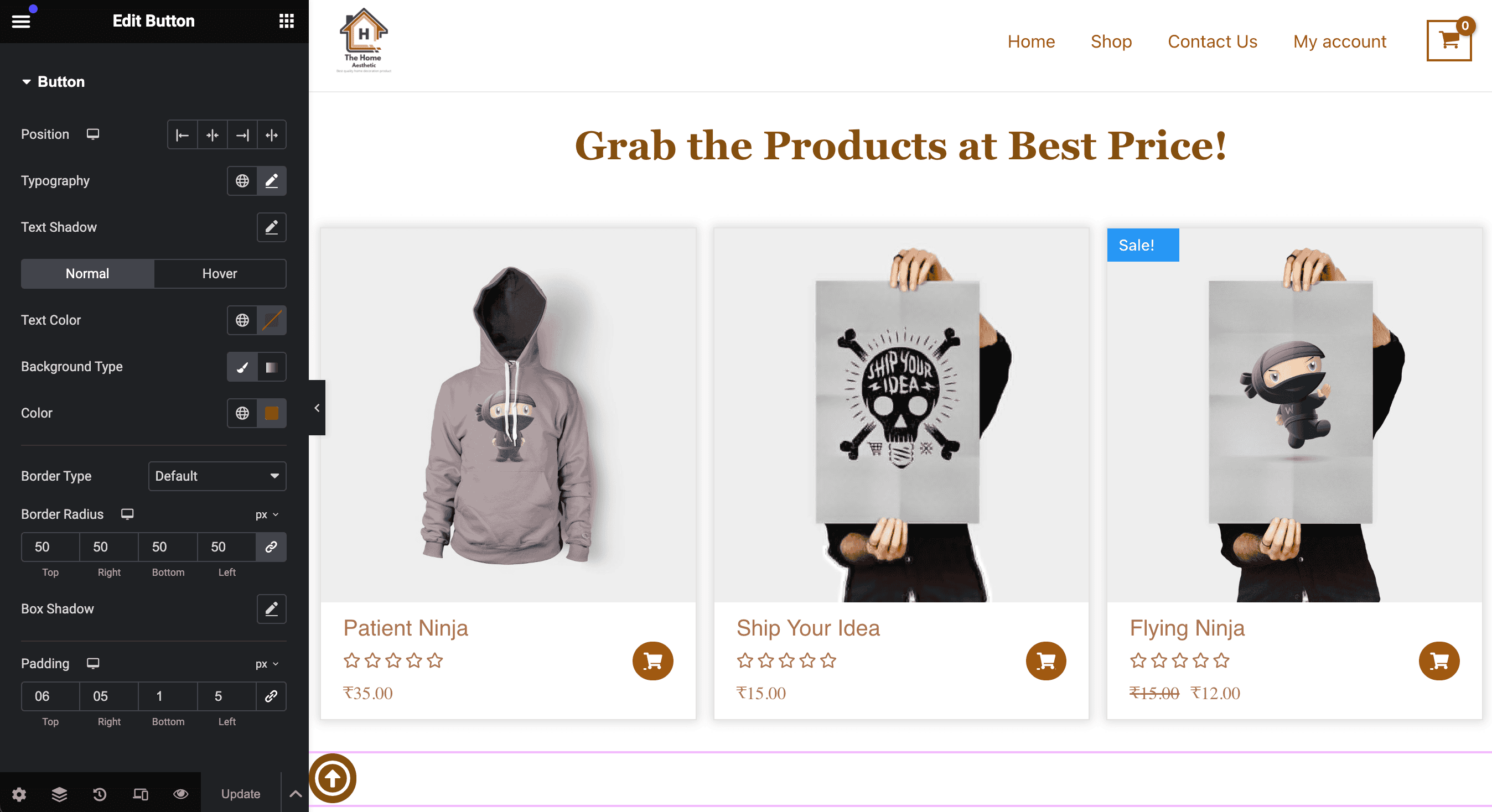
After adding the button, it’s time to design and customize it to match your brand’s style. Start by removing the button text if you want a clean, minimal look. Instead, you can use an icon to represent the scroll action.
To do this, open the icon library in Elementor and choose an icon that fits the purpose, like an upward arrow. If you have a custom SVG icon, you can also upload it to make the button unique. If you prefer, you can keep both the icon and text visible for a more descriptive look.
Then, adjust the colors, size, and border to match your website’s theme and ensure it looks seamless on your page.
Make Your Button Position Fixed
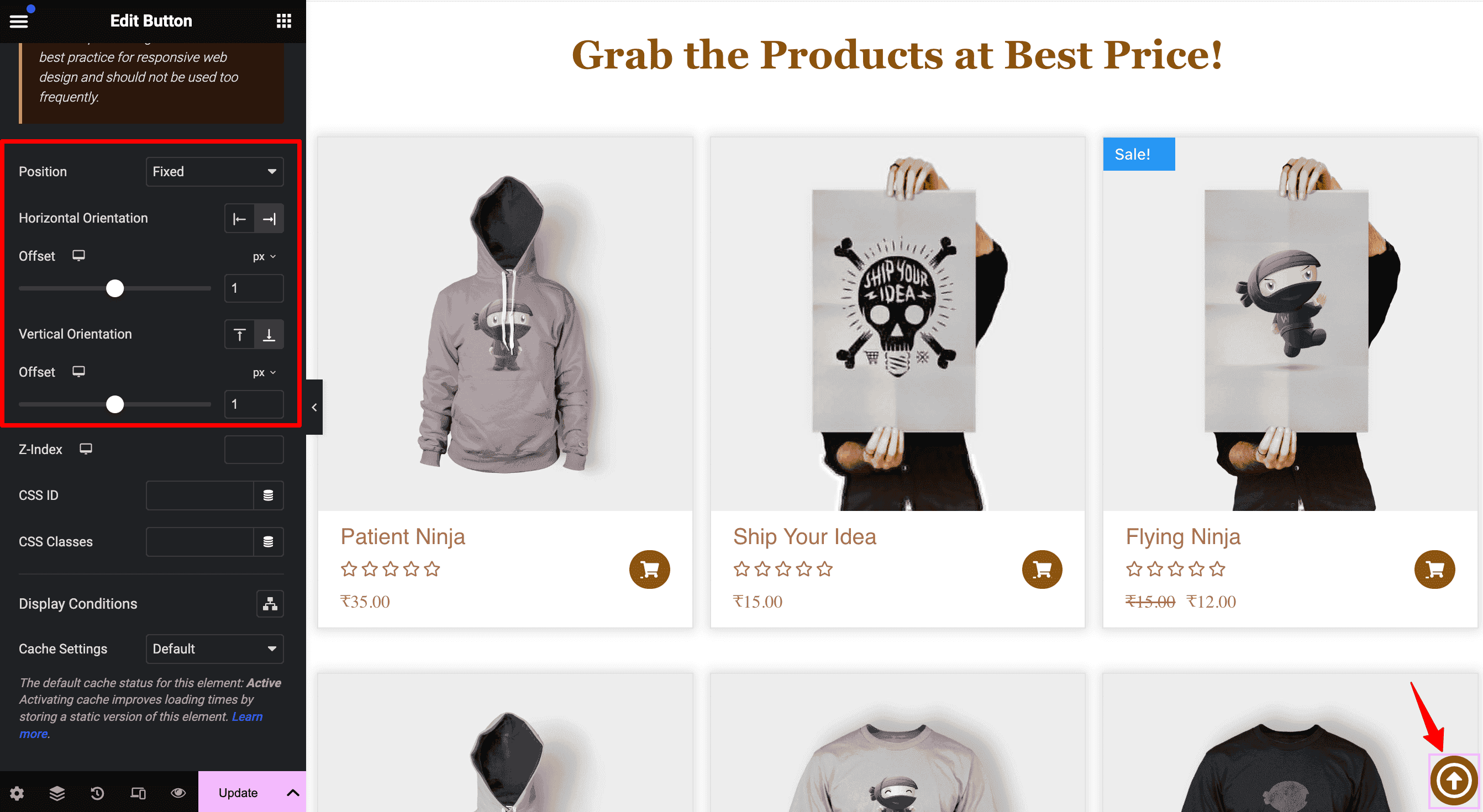
After customizing the button, go to the Advanced tab in the Elementor settings for the button.
- In the advanced settings, find the Positioning section and set the position to Fixed. It ensures the button stays visible on the screen even as users scroll through the page.
- Set the Horizontal Orientation to Right so the button appears on the right side of the screen. Then, set the Vertical Orientation to the Bottom to place the button near the bottom of the screen.
- Next, specify the Horizontal Offset and Vertical Offset to fine-tune the button’s placement.
Add Scroll to Top Functionality in Elementor
Once you’ve created a button and placed it on your page, it’s time to make it functional. This means setting it up so that when a user clicks the button, they’ll be taken back to the top of the page with just one click.
To achieve this, we’ll use Elementor’s anchor link feature. It allows us to create a clickable link that connects the button to the top of the page.
Here’s how you can add a scroll back to top button in Elementor:
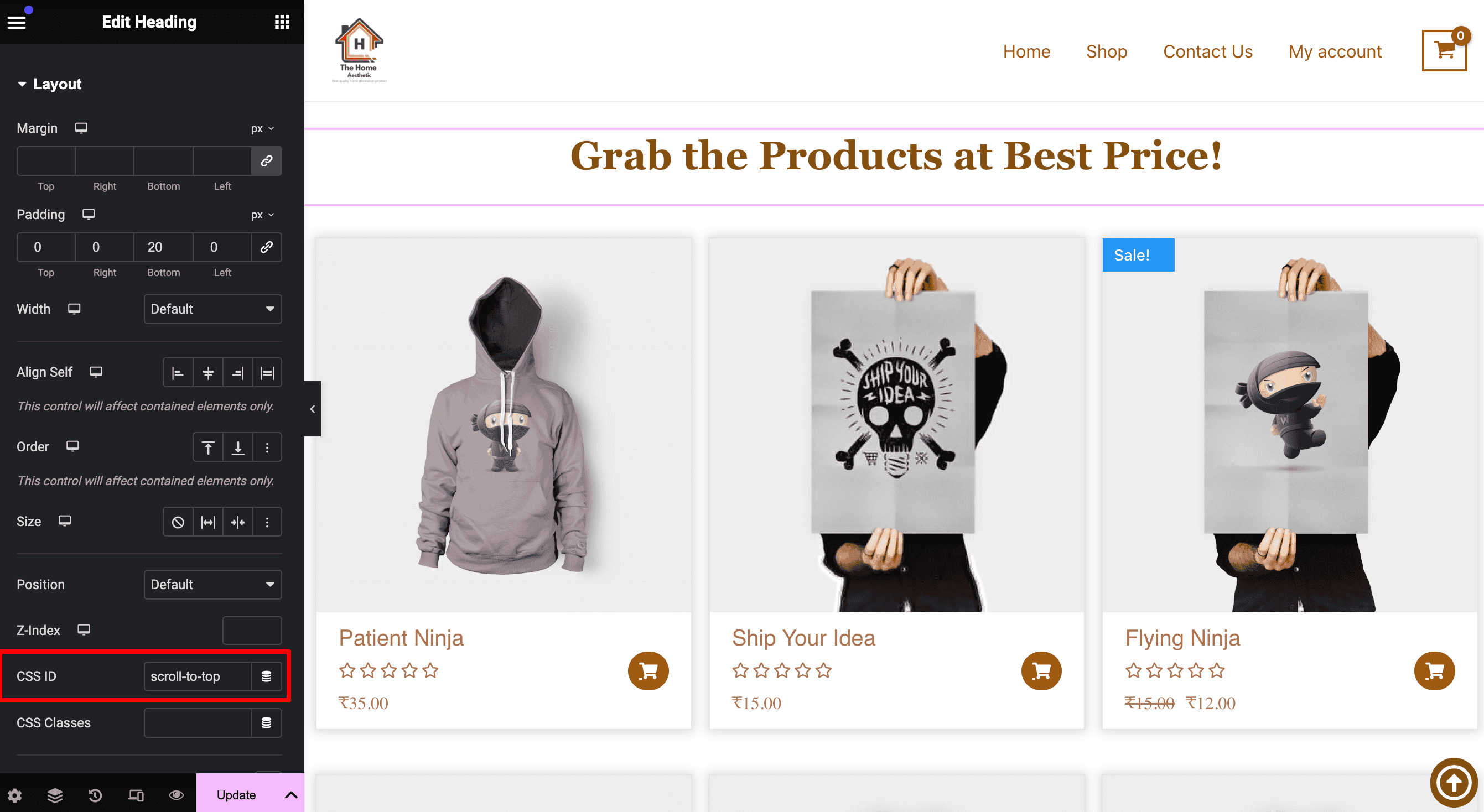
- Open the Elementor editor and select the section you want the page to scroll to when the button is clicked (this is usually the header or a specific top section). In this example, we’ll use a heading section.
- Go to the Advanced tab for that section.
- Find the CSS ID field and type in a unique ID, such as “scroll-to-top”. This ID will link the button to the section.
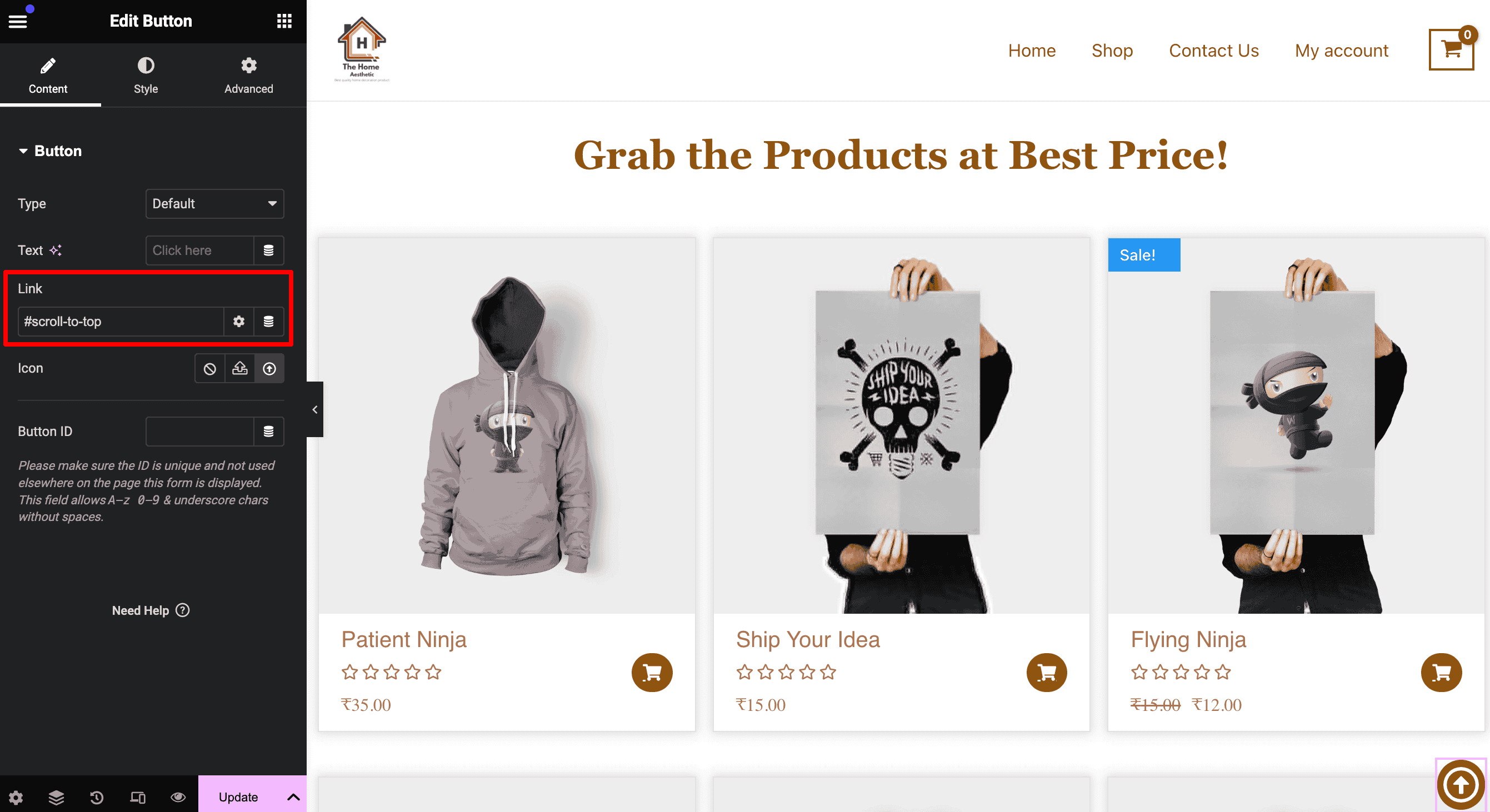
- Next, click on the button widget and go to the content settings.
- In the Link field, enter the CSS ID assigned to the section you want to scroll to. Start the ID with a “#” symbol, like “#scroll-to-top”. It tells the button where to take the user when they click it, directing them to the section with the matching CSS ID.
How to Apply Motion Effects in Elementor
If you want the scroll back to top button to appear only after a user scrolls through a specific part of the page, you can use Motion Effects in Elementor. This way, the button won’t always be visible on the screen, keeping your design clean and less cluttered.
Here’s how to do it:
- Go to the Advanced setting tab for the button you’ve added.
- Click on the Motion Effects section.
- Enable the Scrolling Effects feature.
- Adjust the transparency of the scroll-to-top button based on how the user scrolls. For example, make it fade in as they scroll down and fade out when they scroll up. Additionally, you can decide when the button should appear or disappear, like after the user scrolls a certain amount of the page.